34 A Program in a Web Page
Everything so far has run in a terminal or on a board. Version 0.2 of
Zeno adds one more place: a web page. A button, a box to type in and a
list are written in HTML, as any page is, and what they do is
written in Zeno. zeno build --web puts the two into one
file that any browser opens.
34.1 A first page
A page that counts presses of a button. The page itself is plain HTML, with no script in it:
count.html
<!doctype html>
<html>
<body>
<button id="press">Press me</button>
<p id="count"></p>
</body>
</html>
And this is what it does:
count.zeno
import web

let button = web.element("#press")
let count = web.element("#count")
var presses = 0

button.on("click", function() {
    presses += 1
    count.text = f"{presses} presses"
})

count.text = "no presses yet"
#count text: no presses yetweb.element("#press") finds the element whose
id is press.
button.on("click", ...) gives the button a function to call
each time it is pressed, and count.text = ... changes what
a paragraph shows.
The program was run here by zeno run, which has no
browser. It runs the program on a simulated page, built from
count.html, which prints a line for each change that
somebody looking at the page would see. Nobody presses a button on a
simulated page, so it shows only what the program did as it started. To
see it in a browser, build it:
$ zeno build --web count.zeno
Built count.web.html from count.html and count.zeno. Open it in a browser
zeno build --web count.zeno looked for
count.html beside the program, and wrote
count.web.html: the page, with the program inside it. Open
that file in a browser, from the disk, and the button counts. It is one
file and needs nothing else, so it can also be mailed, or put on any web
server as it is.
34.2 The web module
import web brings in these functions:
| Function | What it does |
|---|---|
web.element(selector) |
the first element that answers to the selector. Stops the program if the page has none |
web.elements(selector) |
every element that answers to it, as a list, which may be empty |
web.create(tag, text) |
a new element with that text in it, not on the page until it is appended to one that is |
web.after(time, f) |
call f once, that much later.
The time has a unit: web.after(500 ms, tick). Gives a
Timer |
web.every(time, f) |
call f that often, until the
timer is stopped or the page is closed. Gives a Timer |
timer.stop() |
call off what the timer was waiting to do |
web.on_key(f) |
call f with the name of each
key that is pressed: "a", "Enter",
"ArrowLeft" |
web.save(name, text) |
keep text under a name, for the next time the page is opened in this browser |
web.load(name) |
the text kept under the name, or
none |
web.forget(name) |
keep nothing under the name any more |
web.fetch(address, f) |
ask the network for what is at the
address, and call f(status, body) when the answer
comes |
web.post(address, text, f) |
send text to the address, and call
f(status, body) with what comes back |
A selector is what CSS calls one. #count is the
element with that id, .done every element of
that class, li every list item, and
#list li.done every done item inside the list.
What these give is an Element, a type like any other: a
function can ask for one and a list can hold them.
| On an element | What it does |
|---|---|
e.text |
the text in it; give it a new value to change what the page shows |
e.value |
what has been typed into it, for a box |
e.on(event, f) |
call f whenever that happens
to it: "click", "input",
"submit", "mousemove", or any event a browser
has |
e.fire(event) |
call, now, what on was given
for that event; how a test presses a button |
e.append(child) |
child becomes the last thing
inside it |
e.remove() |
it leaves the page |
e.clear() |
everything inside it leaves the page |
e.add_class(c),
e.remove_class(c) |
give it a class, or take one away |
e.has_class(c) |
whether it has that class |
e.show(),
e.hide() |
whether it is shown at all |
e.get(name),
e.set(name, v) |
an attribute, such as href.
get gives none for one it does not have |
e.set_style(name, v) |
the style of this one element, named as
CSS names it: e.set_style("color", "red") |
e.get_style(name) |
a style that was set, or
none |
And on a <canvas>, an element made to be drawn on,
five more:
| On a canvas | Draws |
|---|---|
e.draw_rect(x, y, width, height, colour) |
a filled rectangle |
e.draw_circle(x, y, radius, colour) |
a filled circle, its middle at
x, y |
e.draw_line(x1, y1, x2, y2, colour) |
a line |
e.draw_text(x, y, text, colour) |
text, its top left corner at
x, y |
e.erase() |
nothing: the canvas is empty again |
Places are in pixels from the top left corner, and a colour is any
colour CSS knows: "crimson", "#2f5bea".
Most of how a page looks belongs in its CSS. A program changes the
look of many things at once by giving them a class, and the CSS says
what the class looks like; set_style is for the one element
whose look depends on something only the program knows, such as the
colour somebody chose.
import web

let note = web.element("#note")
let link = web.element("#help")
note.add_class("warning")
note.set_style("color", "crimson")
link.set("href", "/help")
print(link.get("href"), link.get("title"), note.get_style("color"))
#note class +warning
#note style color: crimson
#help href: /help
/help none crimson34.3 What happened: the Event
A function given to on is called by the page, later.
Most need to know nothing about what happened, because they already know
which element they are for: they were written where that element was in
reach. So function() { ... } is enough, as in
count.zeno.
A function that needs more asks for it, by taking one parameter of
the type Event:
| Field | What it is |
|---|---|
event.kind |
the name of the event, such as
"click" |
event.target |
the element it happened to. For a click on
an <li> inside the <ul> that
on was given to, the <li> |
event.x,
event.y |
where the mouse was, in pixels from the top left corner of the element; 0 for an event of no mouse |
event.key |
the key, for "keydown" and
"keyup"; "" for any other event |
An Event says what happened, so its fields are read and
never given a new value. Any other parameter is refused, with both forms
that are allowed:
import web

let button = web.element("#press")
button.on("click", function(event: int) {
    print(event)
})
error: `on` will call this function with nothing, or with what happened if it asks: `function() { ... }` or `function(event: Event) { ... }`
--> main.zeno:4:20
|
4 | button.on("click", function(event: int) {
| ^
1 error found. Nothing was run.An event object in a browser has dozens of fields, and nearly every
handler reads none of them. A function that takes nothing has one way to
be written, and needs no type that a beginner must look up; the element
is in reach by the closure, as Functions as
Values showed. The few that need the mouse or the target ask for an
Event, which has only the fields a program cannot find out
another way. (Decisions 14.5 and 16.1.)
34.4 A list of things to do
The examples folder has a page that is a whole small
program: a list of things to do. You type one and press Enter, and it
joins the list; a click marks it done, and another click takes that
back. The page is a form, an empty list, and a line that says how much
is left:
todo.html
<!doctype html>
<html lang="en">
<head>
<meta charset="utf-8">
<meta name="viewport" content="width=device-width, initial-scale=1">
<title>Things to do</title>
<style>
  body { font: 18px/1.5 system-ui, sans-serif; max-width: 28em; margin: 3em auto; padding: 0 1em; }
  form { display: flex; gap: 0.5em; }
  input { flex: 1; font: inherit; padding: 0.3em 0.5em; }
  button { font: inherit; padding: 0.3em 1em; }
  ul { padding: 0; list-style: none; }
  li { padding: 0.4em 0.2em; border-bottom: 1px solid #ddd; cursor: pointer; }
  li.done { color: #999; text-decoration: line-through; }
  #left { color: #666; }
</style>
</head>
<body>
<h1>Things to do</h1>
<form id="add">
  <input id="what" placeholder="What is to be done?" autofocus>
  <button>Add</button>
</form>
<ul id="list"></ul>
<p id="left"></p>
</body>
</html>
The program is the rest. Each thing gets its own function for its
clicks, written inside add where the new item
is in reach:
todo.zeno
# A list of things to do, in a page.
#
# The page is `todo.html`, beside this file: a form with a box to type
# in, an empty list, and a line that says how much is left. This program
# is what the page does.
#
#     zeno build --web examples/todo.zeno    writes todo.web.html: open it
#     zeno run examples/todo.zeno            runs it here, on a simulated page
#     zeno test examples/todo.zeno           runs its tests
import web

let form = web.element("#add")
let box = web.element("#what")
let list = web.element("#list")
let left = web.element("#left")

# How many things are not done yet.
var remaining = 0

function show_remaining() {
    if remaining == 1 {
        left.text = "1 thing left"
    } else {
        left.text = f"{remaining} things left"
    }
}

# Put one thing on the list. A click on it marks it done, and another
# click takes that back.
function add(what: str) {
    let item = web.create("li", what)
    item.on("click", function() {
        if item.has_class("done") {
            item.remove_class("done")
            remaining += 1
        } else {
            item.add_class("done")
            remaining -= 1
        }
        show_remaining()
    })
    list.append(item)
    remaining += 1
    show_remaining()
}

# The form was sent: Enter in the box, or the Add button.
function sent() {
    let what = box.value.strip()
    if what != "" {
        add(what)
        box.value = ""
    }
}

form.on("submit", sent)

# Escape empties the box.
web.on_key(function(key: str) {
    if key == "Escape" {
        box.value = ""
    }
})

add("Read docs/web.md")
add("Build this page")

test "a thing that is added is left to do" {
    let before = remaining
    add("Water the plants")
    assert remaining == before + 1
    assert left.text == f"{remaining} things left"
}

test "an empty box adds nothing" {
    let before = remaining
    box.value = "   "
    sent()
    assert remaining == before
}
$ zeno run todo.zeno
#list + <li> Read docs/web.md
#left text: 1 thing left
#list + <li> Build this page
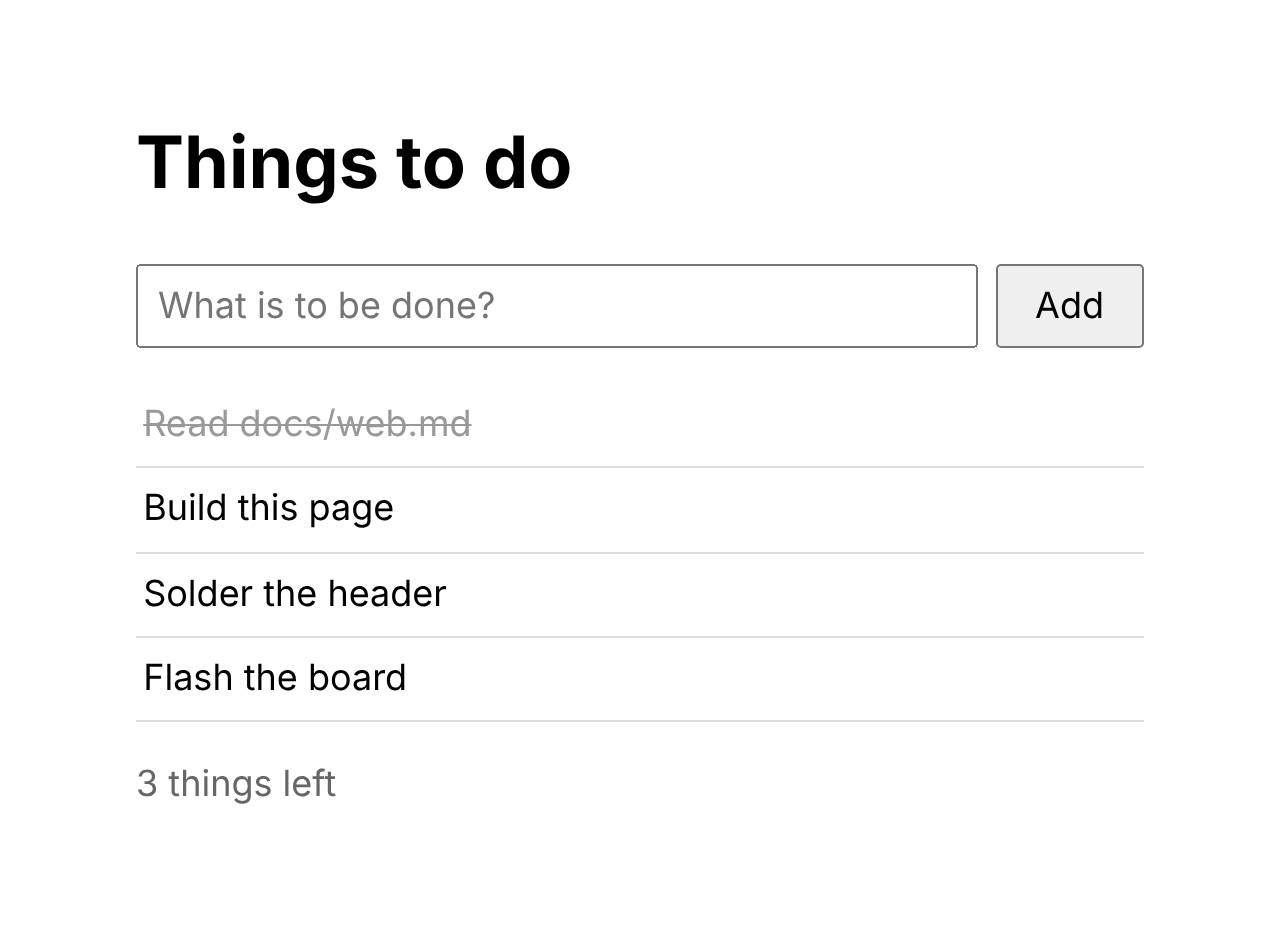
#left text: 2 things leftBuilt with zeno build --web todo.zeno and opened in a
browser, after typing two more things and clicking one:
34.5 Drawing, and what is kept
The second example is a sheet to draw on with the mouse. The page has
four buttons that are colours, a button that wipes the sheet, and a
canvas. It shows what the list of things to do does not: a function that
asks for the Event to learn where the mouse is, drawing,
the style of one element, and a colour that is kept for the next visit
with web.save and web.load:
sketch.zeno
# A sheet to draw on with the mouse, in a page.
#
# The page is `sketch.html`, beside this file: four buttons that are
# colours, a button that wipes the sheet, and a `<canvas>`, which is an
# element a program can draw on.
#
#     zeno build --web examples/sketch.zeno    writes sketch.web.html: open it
#     zeno run examples/sketch.zeno            runs it here, on a simulated page
#     zeno test examples/sketch.zeno           runs its tests
#
# It shows what `todo.zeno` does not: a function that asks for the
# `Event` to learn where the mouse is, drawing, the style of one
# element, and something that is kept from one visit to the next.
import web

let paper = web.element("#paper")
let lines = web.element("#lines")

# The colour that is drawn in. The one chosen on the last visit, if
# there was a visit.
var colour = "black"
let kept = web.load("sketch colour")
if kept is not none {
    colour = kept
}

# Is the button of the mouse down, and where the mouse was last.
var drawing = false
var last_x = 0.0
var last_y = 0.0
var drawn = 0

function show_drawn() {
    lines.text = f"{drawn} lines drawn"
    lines.set_style("color", colour)
}

# Each colour button says which colour it is in the page itself, as
# `data-colour`. The one that is chosen gets a black edge, which is a
# class, and the look of the class is CSS.
function choose(wanted: str) {
    colour = wanted
    web.save("sketch colour", colour)
    for button in web.elements(".colour") {
        if button.get("data-colour") == colour {
            button.add_class("chosen")
        } else {
            button.remove_class("chosen")
        }
    }
    show_drawn()
}

for button in web.elements(".colour") {
    let its = button.get("data-colour")
    if its is not none {
        button.set_style("background-color", its)
        button.on("click", function() { choose(its) })
    }
}

# The mouse went down on the sheet: a line starts here.
function pen_down(event: Event) {
    drawing = true
    last_x = event.x
    last_y = event.y
}

# The mouse moved. With the button down, that is a line from where it
# was to where it is.
function pen_moved(event: Event) {
    if drawing {
        paper.draw_line(last_x, last_y, event.x, event.y, colour)
        last_x = event.x
        last_y = event.y
        drawn += 1
        show_drawn()
    }
}

function pen_up() {
    drawing = false
}

function wipe() {
    paper.erase()
    drawn = 0
    show_drawn()
    paper.draw_text(10, 10, "Draw here", "silver")
}

paper.on("mousedown", pen_down)
paper.on("mousemove", pen_moved)
paper.on("mouseup", pen_up)
paper.on("mouseleave", pen_up)
web.element("#wipe").on("click", wipe)

choose(colour)
wipe()

test "the mouse draws only while its button is down" {
    let before = drawn
    paper.fire("mousemove")
    assert drawn == before
    paper.fire("mousedown")
    paper.fire("mousemove")
    paper.fire("mousemove")
    assert drawn == before + 2
    paper.fire("mouseup")
    paper.fire("mousemove")
    assert drawn == before + 2
}

test "a colour that is chosen is kept" {
    choose("crimson")
    assert web.load("sketch colour") == "crimson"
    assert lines.get_style("color") == "crimson"
}

test "wiping starts the count again" {
    paper.fire("mousedown")
    paper.fire("mousemove")
    web.element("#wipe").fire("click")
    assert drawn == 0
}
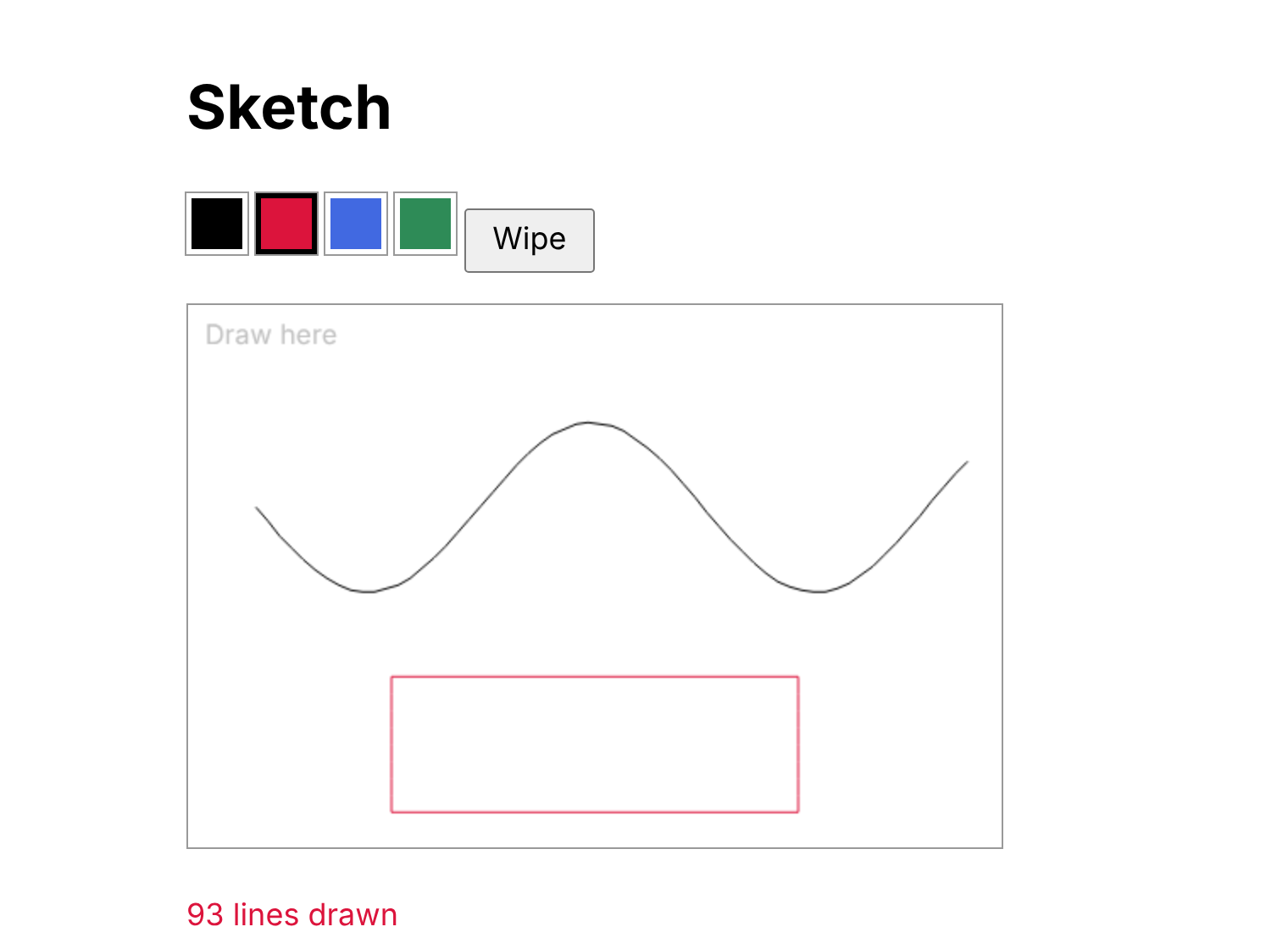
Each colour button says in the page itself which colour it is, with
an attribute such as data-colour="crimson", and the program
reads it with get. So a fifth colour is a line of HTML, and
no change to the program. In a browser:
34.6 Time and the network
web.after calls a function once, later, and
web.every calls it again and again. Both want a time with a
unit, and both give a Timer, whose stop()
calls off what it was waiting to do. A clock that can be paused keeps
its timer while it runs, and none while it does not:
clock.zeno
import web

let clock = web.element("#clock")
var seconds = 0
var timer: Timer or none = none

function tick() {
    seconds += 1
    clock.text = f"open for {seconds} s"
}

function start() {
    if timer is none {
        timer = web.every(1 s, tick)
    }
}

function pause() {
    if timer is not none {
        timer.stop()
        timer = none
    }
}

web.element("#start").on("click", start)
web.element("#pause").on("click", pause)
start()
clock.text = "just opened"

test "pause stops the clock" {
    pause()
    assert timer is none
}
$ zeno test clock.zeno
clock.zeno
#clock text: just opened
ok pause stops the clock
1 test: 1 passed, 0 failed.start asks first, so pressing Start twice does not start
two timers. Stopping a timer that has stopped, or that has made its one
call, does nothing.
web.fetch asks a web server for what is at an address.
The answer comes later, so it takes a function, which is called with the
status, such as 200 for found or 404 for not, and the text of the
answer. An address that cannot be reached at all answers with status 0.
The text is often JSON, which json.parse reads (Reading and
Writing):
prices.zeno
import web
import json

let list = web.element("#prices")

function show(status: int, body: str) {
    if status != 200 {
        list.text = f"could not get the prices ({status})"
        return
    }
    for name, price in json.parse(body)["prices"] {
        list.append(web.create("li", f"{name}: {price}"))
    }
}

web.fetch("prices.json", show)

test "a 404 says so" {
    show(404, "")
    assert list.text == "could not get the prices (404)"
}

test "prices are listed" {
    show(200, "{\"prices\": {\"tea\": 2, \"milk\": 1}}")
    assert len(web.elements("#prices li")) == 2
}
$ zeno test prices.zeno
prices.zeno
#prices text: could not get the prices (404)
ok a 404 says so
#prices + <li> tea: 2
#prices + <li> milk: 1
ok prices are listed
2 tests: 2 passed, 0 failed.web.post(address, json.write(order), done) sends the
other way. A page can fetch only what the browser allows it to: a page
opened from the disk can fetch almost nothing, and a page on a web
server can fetch from another server only if that server permits it. The
program is then told status 0, and the browser’s console says why.
34.7 Testing a page
The simulated page is not only for running. No button is ever pressed
on it, no time passes and no network answers, so it calls none of the
functions it was given; the tests do that. A test can call the function
itself, as the tests of prices.zeno call show
with an answer of their own. Or it can say fire, which
calls whatever on was given for that event, in the order it
was given:
$ zeno test sketch.zeno
sketch.zeno
#lines text: 0 lines drawn
#lines style color: black
#paper erase
#paper draw_text 10 10 Draw here silver
#paper draw_line 0 0 0 0 black
#lines text: 1 lines drawn
#paper draw_line 0 0 0 0 black
#lines text: 2 lines drawn
  ok      the mouse draws only while its button is down
#lines style color: crimson
  ok      a colour that is chosen is kept
#paper draw_line 0 0 0 0 crimson
#lines text: 3 lines drawn
#paper erase
#lines text: 0 lines drawn
#paper draw_text 10 10 Draw here silver
  ok      wiping starts the count again

3 tests: 3 passed, 0 failed.
An Event that fire makes has the element as
its target, and 0 for x and y.
fire does the same in a browser: it calls the program’s own
functions at once, and sends the browser no event. So what a page does
can be tested in the same run as every other test, by the same engines,
with no browser, as Testing
showed.
When the HTML of the page is beside the program, as
todo.html is beside todo.zeno, the simulated
page is built from it: its ids, classes, attributes and text, and which
element is inside which. So a name spelled wrong is found on a desk,
with the same words as in the browser:
$ sed "s/#list/#lsit/" todo.zeno > typo.zeno
$ cp todo.html typo.html
$ zeno run typo.zeno
error: uncaught ValueError: the page has no element that answers to `#lsit`. `web.elements` gives a list, which may be empty
  --> typo.zeno:14:12
   |
14 | let list = web.element("#lsit")
   |            ^
A program with no page beside it gets a simulated page that has every
element it asks for, because there is nothing to hold it to. And the
simulated page knows no CSS: it cannot say that
set_style("colour", "red") names no style, which the
browser says when the page is opened. It also reads only plain
selectors: a tag, .class and #id, together
(li.done) and one inside another (#list li).
For any other it stops, rather than pretend the page has nothing:
import web

for item in web.elements("ul > li") {
    print(item.text)
}
error: uncaught ValueError: the simulated page cannot read `ul > li`. It reads a tag, `.class` and `#id`, together (`li.done`) and one inside another (`#list li`). A browser reads the rest, so the page that is built can use it
--> main.zeno:3:13
|
3 | for item in web.elements("ul > li") {
| ^The page that is built can use any selector a browser reads.
34.8 A program with no page
zeno build --web needs no HTML of yours. With no page
beside the program, it writes one that shows what the program prints, so
any program that runs under zeno run and reads no file can
be put in a page:
hello.zeno
for n in range(1, 4) {
    print(f"{n} squared is {n * n}")
}
$ zeno build --web hello.zeno
Built hello.web.html. Open it in a browserIn a page of your own, print goes to the browser’s
console, and also into the element with the id zeno-output
if the page has one: put
<pre id="zeno-output"></pre> in the page to see
it.
An error that nothing catches stops the program, as it does under
zeno run, and is shown in a box at the foot of the page
with its line and column. After that the page calls nothing more,
because a program that went wrong halfway through a function has
variables that are half changed.
34.9 The playground
zeno playground writes one more page,
playground.html, in which Zeno programs are written and run
with nothing installed:
$ zeno playground
Wrote playground.html. Open it in a browser, or put it on a web server
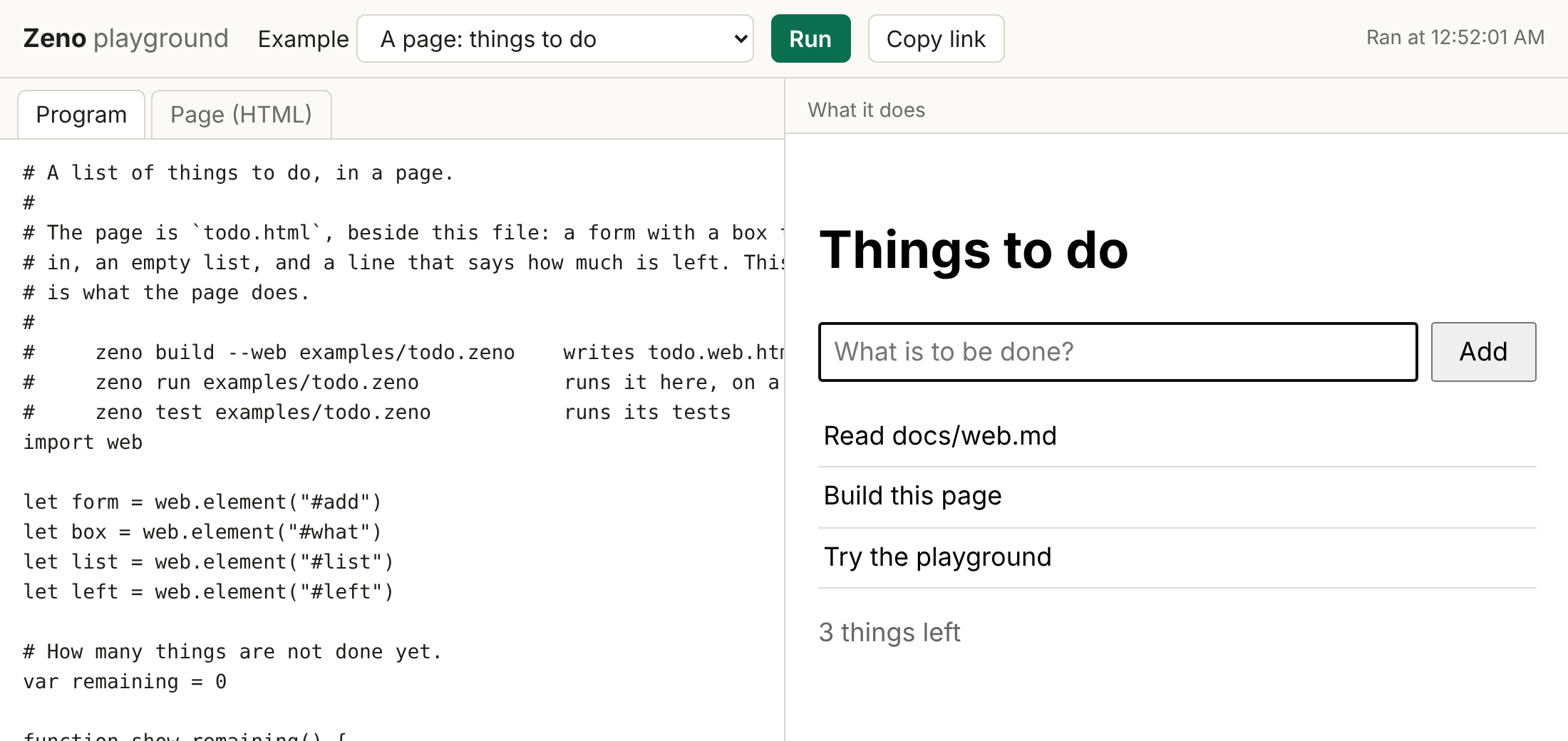
On the left is a box for the program, and a second tab for the HTML
of its page; on the right is what the program does. Run, or
Ctrl+Enter, checks the program and runs it, in the browser, by the same
Zeno that zeno run is. A mistake the checker finds is shown
where the output would be. A list of examples starts you off, among them
the list of things to do and the sheet to draw on. And Copy
link gives an address that opens the playground with this program
in it: the program travels in the part of the address after the
#, which a browser never sends to a server, so nothing
keeps a copy. It is the page to send to somebody who asks what Zeno
looks like.
Each run gets a new page. A program in a page never ends, since its
functions are called whenever a button is pressed, so the playground
does not try to stop one: it shows each run in a frame, a page inside
the page, and throws the whole frame away for the next. The program is
one file; a program in several files, or one that needs a package, needs
zeno build --web.
34.10 How it works
A browser runs two kinds of program: JavaScript, and
WebAssembly, a small instruction set that a compiler can aim at
as it aims at a processor. Rust is one such compiler. So
zeno.wasm is the Zeno you already have, the lexer, the
parser, the checker and the interpreter, compiled for a browser in place
of a desk. Nothing of Zeno was written again for it, and that is why a
program means the same in a page as under zeno run: the
same checker checks it, and the same interpreter runs it.
A built page holds three things: the program as you wrote it,
zeno.wasm, and three hundred lines of JavaScript that start
the one with the other. zeno.wasm is built for size, and
packed the way a .zip file is packed, by a packer written
for Zeno, then written out as text; a built page is about 0.4 megabytes,
and the browser unpacks it by itself. WebAssembly can only do arithmetic
and call functions, and only numbers cross between it and the page. So
text crosses as a place in memory and a length, an element as a number
that the JavaScript looks up in a table, and every request to the page,
such as "set the text of element 4", as one line of JSON through a
single function. Events and the answers of the network come back the
same way. Styles, drawing, saving and the network were all added without
the line between Zeno and the browser growing past five functions.
zeno build --web and zeno playground find
zeno.wasm where the variable ZENO_WASM says,
or else beside zeno itself, which is where the installers
and the archives put it (Getting Zeno).
34.11 What a page cannot do
- Wait.
-
A browser has one thread for a page, and a program that sleeps on it stops the page drawing and the buttons working. In a page,
time.sleepis an error that says to useweb.after, which lets the page go on in between. - Go very deep.
-
The interpreter calls itself for each nested call of the program, on the browser’s stack, which is small. Zeno counts, and stops at 200 nested calls in a page, with its own message, where on a desk the limit is 1000.
- Be built as firmware.
-
--firmware,--no-collector,--llvmand--memoryare for a compiled program, and are refused with--web. A page runs the interpreter.
And some things the web module does not have yet: images
drawn on a canvas, curves, touch with more than one finger, and an
address bar of its own (a page with several views shows and hides them).
A page runs at the speed of zeno run: plenty for a page
that waits for clicks, and for a sketch, and not enough for a game that
draws a thousand things sixty times a second. The program is in the page
as it was written, comments and all, for anyone who opens the page to
read. Only Chromium has been tried, and the page needs a browser from
2023 or later.
A page could have been made by compiling Zeno to JavaScript, or
through C or LLVM to WebAssembly. Each of those is one more engine to
hold to the same answers as the others, and JavaScript has no 64-bit
whole number to be an int. Compiled Zeno is also strict
Zeno, so a page would have had a smaller language than a desk. Running
the interpreter itself in the browser adds no engine, and the whole
language is there on the first day. A small, fast page compiled through
C or LLVM is still open, and the web module would not
change for it. (Decision 14.1.)
import web finds elements with web.element
and web.elements, makes them with web.create,
calls a function later with web.after and
web.every or on a key with web.on_key, keeps
text between visits with save and load, and
reaches the network with fetch and post. An
Element has text and value, and
methods to listen, fire, append, remove, change classes, styles and
attributes, and draw. A function the page calls takes nothing, or an
Event. zeno build --web joins
name.html and name.zeno into one
name.web.html, and zeno playground writes a
page to try programs in. Under zeno run and
zeno test the page is simulated, from the HTML when it is
there, so a page can be tested without a browser.
Build
count.zenoand open it. Then add a second button that sets the count back to zero, and a test that usesfire.Add a button to
todo.htmlthat removes every thing that is done. You needweb.elements(".done"). Write the test first.Rewrite
todo.zenowith one function for the whole list, given tolist.on("click", ...), that asks for theEventand usesevent.target. Which version is easier to test?Make
sketch.zenodraw dots withdraw_circleon a click, and lines only while the button is held.Keep the list of things to do between visits:
json.writea list of the texts intoweb.save, and read it back withweb.loadandjson.parsewhen the page opens.Open
zeno playground, write a program, copy its link, and open the link in a new window.